
Accessing Mission Logs
Click “Mission Logs” in the header navigation or bottom navigation bar (mobile). You can also reach it from the success/failure overlays after a transaction. Both overlays have a “Mission Logs” button.What you see
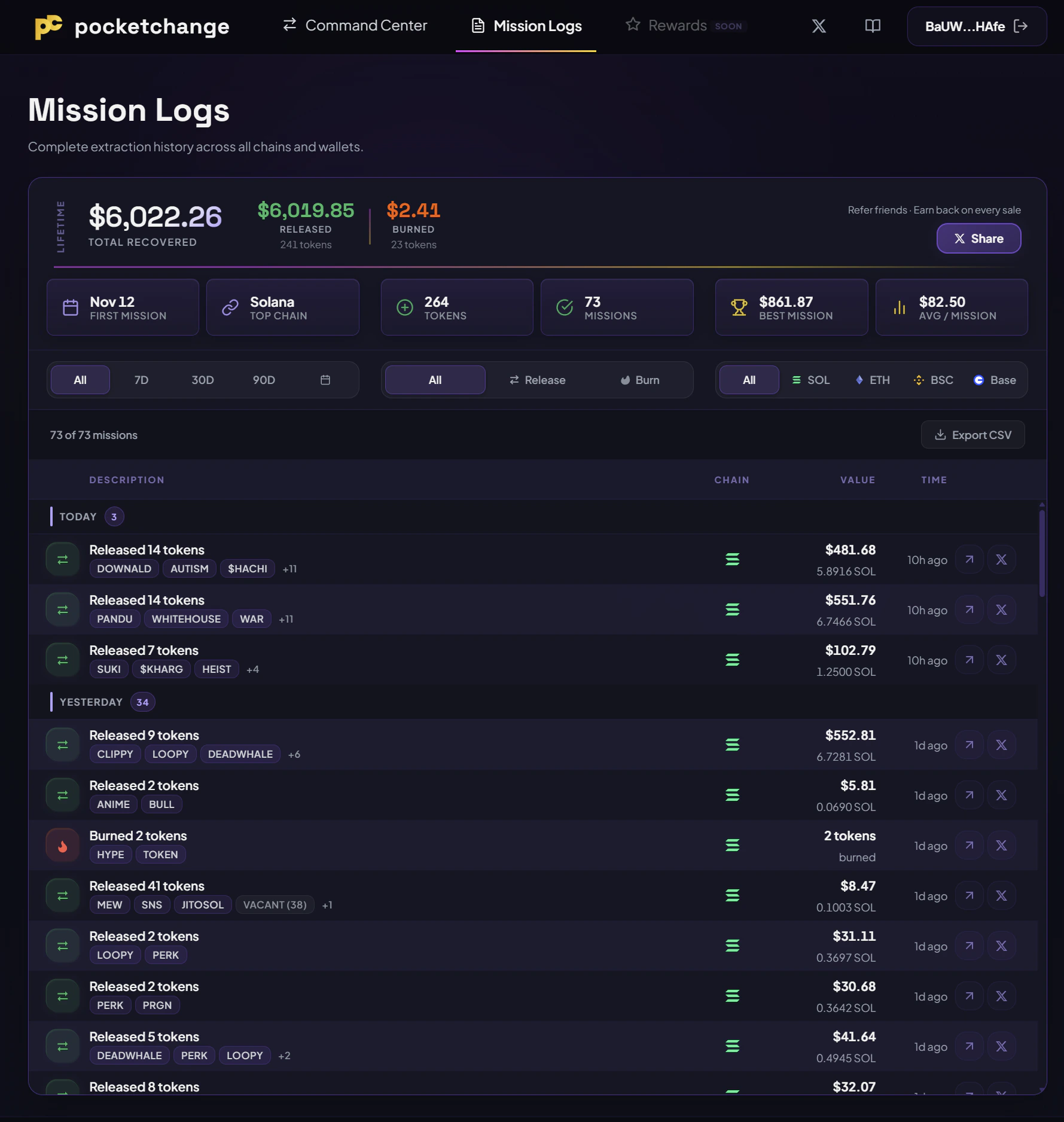
Each mission (transaction) appears as a card showing:- Mission ID: Unique identifier (e.g., MX-9001)
- Date and time: When the transaction executed
- Type: Convert or Burn, with a colored indicator
- Chain: Which network the transaction ran on
- Token count: How many tokens were included
- Extracted / Failed: How many tokens succeeded vs. failed
- Total value: USD equivalent and native asset amount (SOL, ETH, BNB)
Filters
Three filter groups let you narrow down what’s shown: Period: All time, last 7 days, 30 days, 90 days, or a custom date range. The custom option opens a calendar picker. Type: All types, Convert only, or Burn only. Chain: All chains, or a specific one: SOL, ETH, BSC, Base. On mobile, filters collapse behind a toggle button that shows a summary of active filters (e.g., “All . All types . All chains”).Detail panel
Click any mission card to open a slide-in panel on the right side. The detail view shows:- Full mission ID, date, type, and chain
- Total converted/burned value (USD + native amount)
- Extracted and failed token counts
- Per-token breakdown: symbol, value, transaction hash, status, and failure reason (if applicable)
- Explorer link for EVM transactions (Etherscan, BscScan, BaseScan)
Share card
At the top of Mission Logs, a stats card shows your lifetime activity:- Total missions completed
- Total tokens processed
- Total value recovered
- Total value burned
CSV export
Click “Export CSV” next to the mission count to download your full history as a CSV file. The export includes:| Column | Description |
|---|---|
| ID | Mission identifier |
| Date | ISO timestamp |
| Type | release or burn |
| Chain | solana, ethereum, bsc, or base |
| Tokens | Number of tokens in the mission |
| Extracted | Number of successful tokens |
| Failed | Number of failed tokens |
| USD | Total USD value |
| Native | Total native asset value |
| Symbol | Native asset symbol |
| Token Names | Comma-separated list of token symbols |
| TX Hash | Transaction hash (when available) |
pocketchange-missions-YYYY-MM-DD.csv.
Multi-chain history
Mission Logs shows history from all chains you’ve ever connected, not just the currently selected one. If you connected a Solana wallet yesterday and an Ethereum wallet today, both histories appear together. The app syncs history by checking all previously linked wallet addresses against the API. A progress indicator appears while the app syncs history.Empty states
No wallet connected: Shows an informational prompt with a “Start Scanning” button. Wallet connected, no missions: Shows “No Missions Yet” with a call to action to go to the Command Center.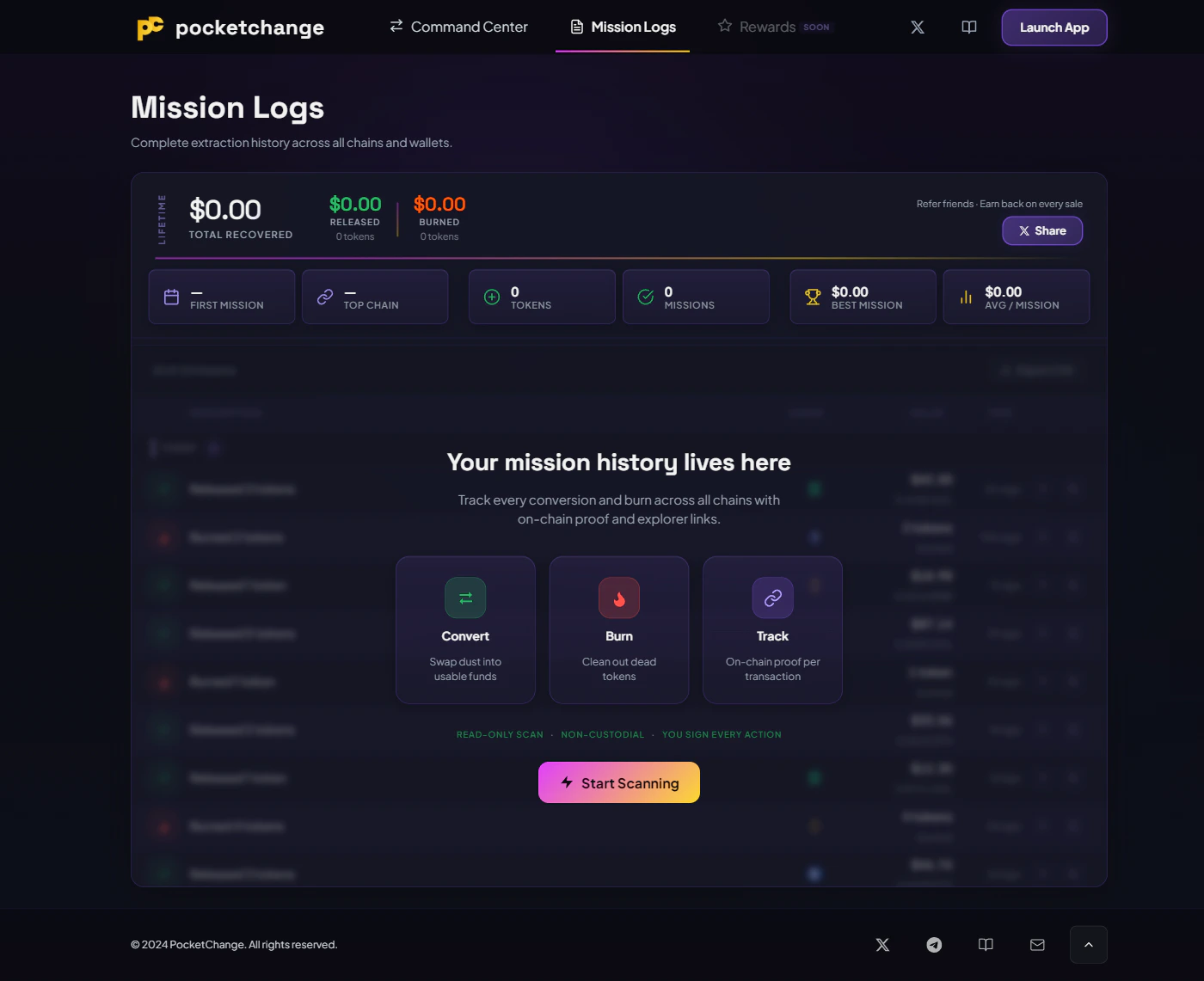
Using PocketChange
How to execute your first conversion